How to Import PDF and EPUB Files into Scroll+ on Android
Scroll+ is designed for books you already have permission to read. You choose a PDF or EPUB through Android's system file picker, and the app copies it into a local reading library. EPUB and PDF follow slightly different preparation paths, so this guide explains what you will see and how to know each step worked.
1. Check the file before importing
Make sure the file ends in .pdf or .epub and opens from the Files app or its source location. Scroll+ currently accepts PDFs up to 30 MB and EPUB files up to 50 MB. Encrypted, rights-protected, damaged, or unusually packaged files may still fail even when they are under the size limit.
Keep the original file. Scroll+ copies supported books into its own app storage; it does not turn the library into a cloud backup. If privacy and offline behavior are your priority, read what local-first reading does and does not mean.
2. Open the Android file picker
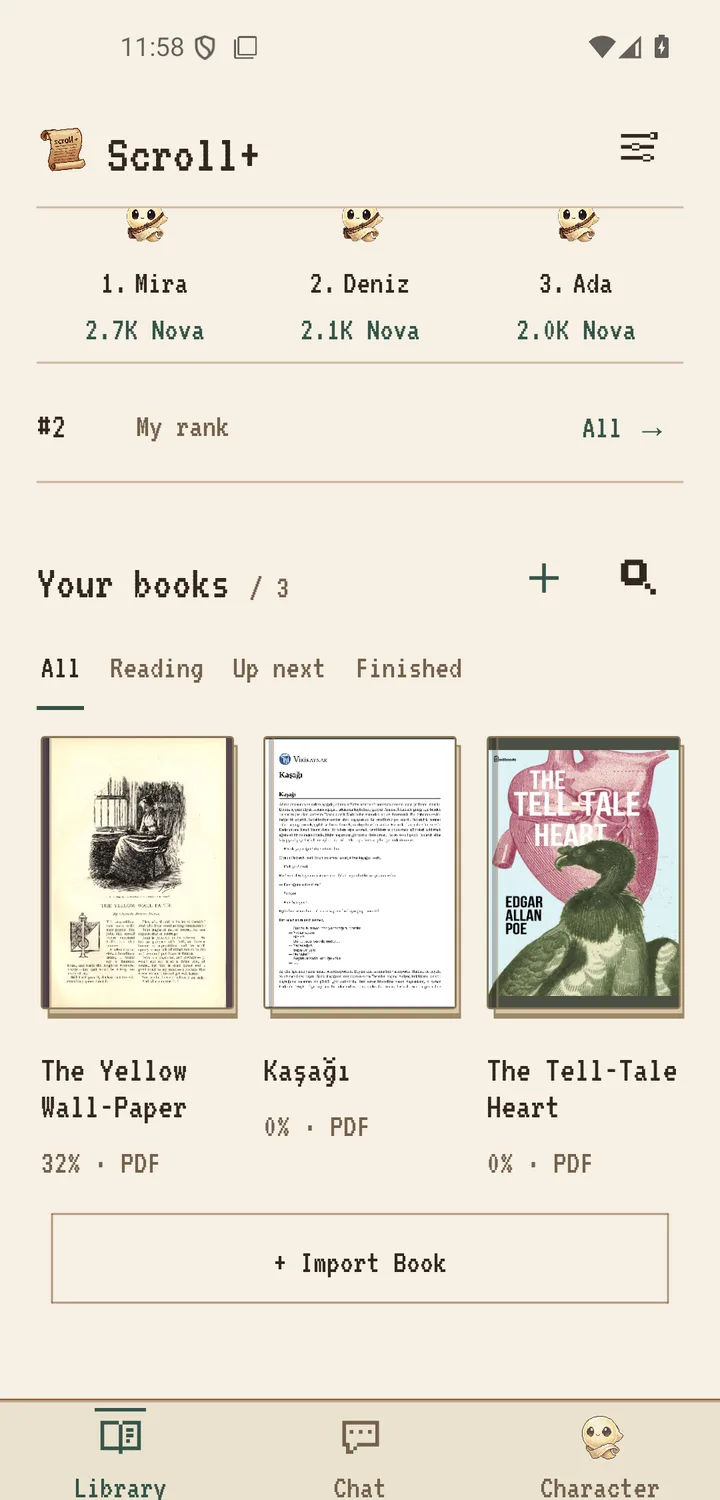
From the Scroll+ library, tap the import control. Android's file picker opens. Browse to Downloads, Documents, or another provider shown by Android, then select one PDF or EPUB. When the book appears in your library, the copy step succeeded. The source may come from a cloud-backed folder, but Scroll+'s own book processing happens on the device after selection.
If the file does not appear, confirm its extension and wait for any cloud provider to finish downloading it to the phone. A file listed by a provider is not always stored locally yet. If Android cannot supply the file, Scroll+ cannot import it.
3. What happens when you choose an EPUB
Scroll+ reads the EPUB package, its book metadata, chapter order, and available cover locally. A successful import adds the title to the EPUB tab. Open it and check the chapter list, first chapter, and special characters. Poor source packaging can still cause missing chapters or styles.
EPUB is usually the easiest choice for text-heavy phone reading because its content can adapt to the screen. If your source offers both formats, use the EPUB versus PDF decision guide before importing both copies.
4. Choose a PDF reading mode
After selecting a PDF, Scroll+ asks how to open it. Choose Text and images or Text only for novels and linear text when adjustable typography matters. Choose Original PDF for papers, scans, images, tables, forms, or precise page layout. Original PDF can open without text extraction; the text modes first prepare a reading copy from the available text layer.
If you do not know which kind of PDF you have, use the quick scanned-versus-text PDF checks. A scanned page may look readable to you while containing no extractable words. In that case Scroll+ can fall back to the original-page mode.
5. Let local processing finish, then verify
PDF text preparation runs sequentially on your device and shows progress in the library. Processing time depends on page count, layout complexity, available memory, and phone performance. You can read another prepared book while the queue continues, but do not assume a pending PDF is broken just because an older device takes longer.
Open the finished book and inspect several different pages. Check paragraph order, headings, non-English characters, and any table you rely on. Scroll+ 0.9.0 improved the queue and difficult-file handling; see the release notes. If extraction loses meaning, use Original PDF for that file.
You are ready when the book passes a real-page check
A title in the library confirms import, but a quick page check confirms readability. EPUB should show its chapters. A text-focused PDF should finish preparation and preserve the reading order you need. A layout-heavy or scanned PDF should remain usable in the Original PDF view.