PDF Images Missing on Your Phone? How to Keep Them in Scroll+
A reader told us about an art history book full of photographs of ancient sculpture. In Scroll+ the captions were there, but the photos were not: only "Image 1", "Image 2". The same file showed every picture in an office app. Both apps were doing what they were built to do, and the fix is a choice you make when you import the PDF. This guide explains why images go missing and which mode keeps them.
1. Why the pictures disappear
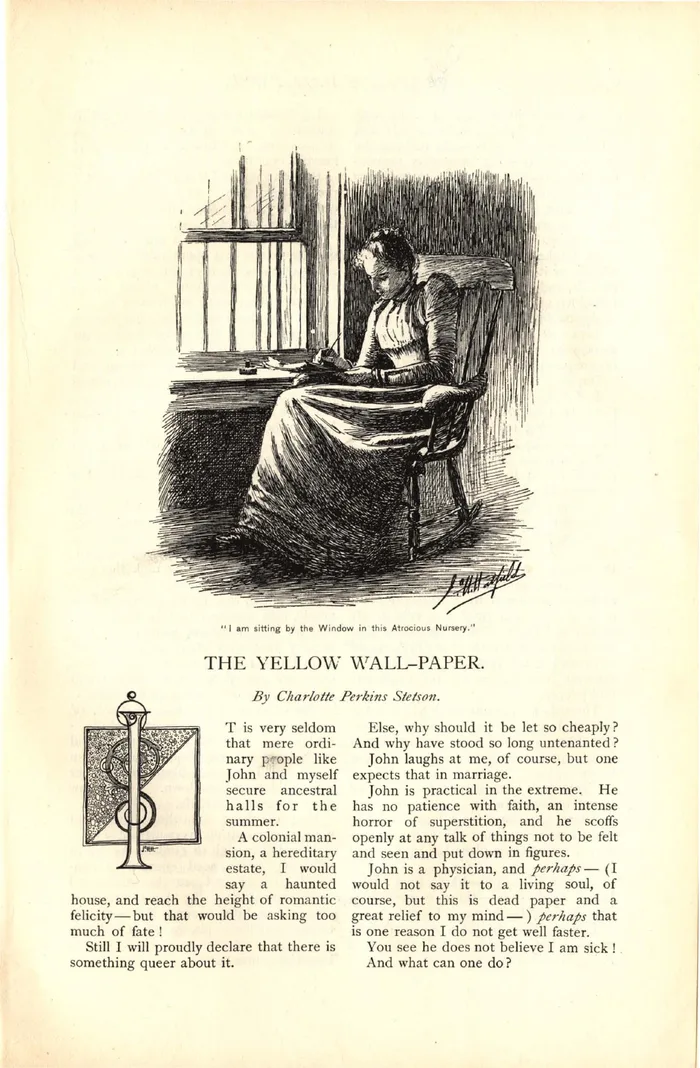
A PDF is a set of fixed pages. Office apps and most PDF viewers show those pages as they are, so every picture appears exactly where the publisher put it. The price is that the text cannot grow: to read small print you zoom in and pan sideways.
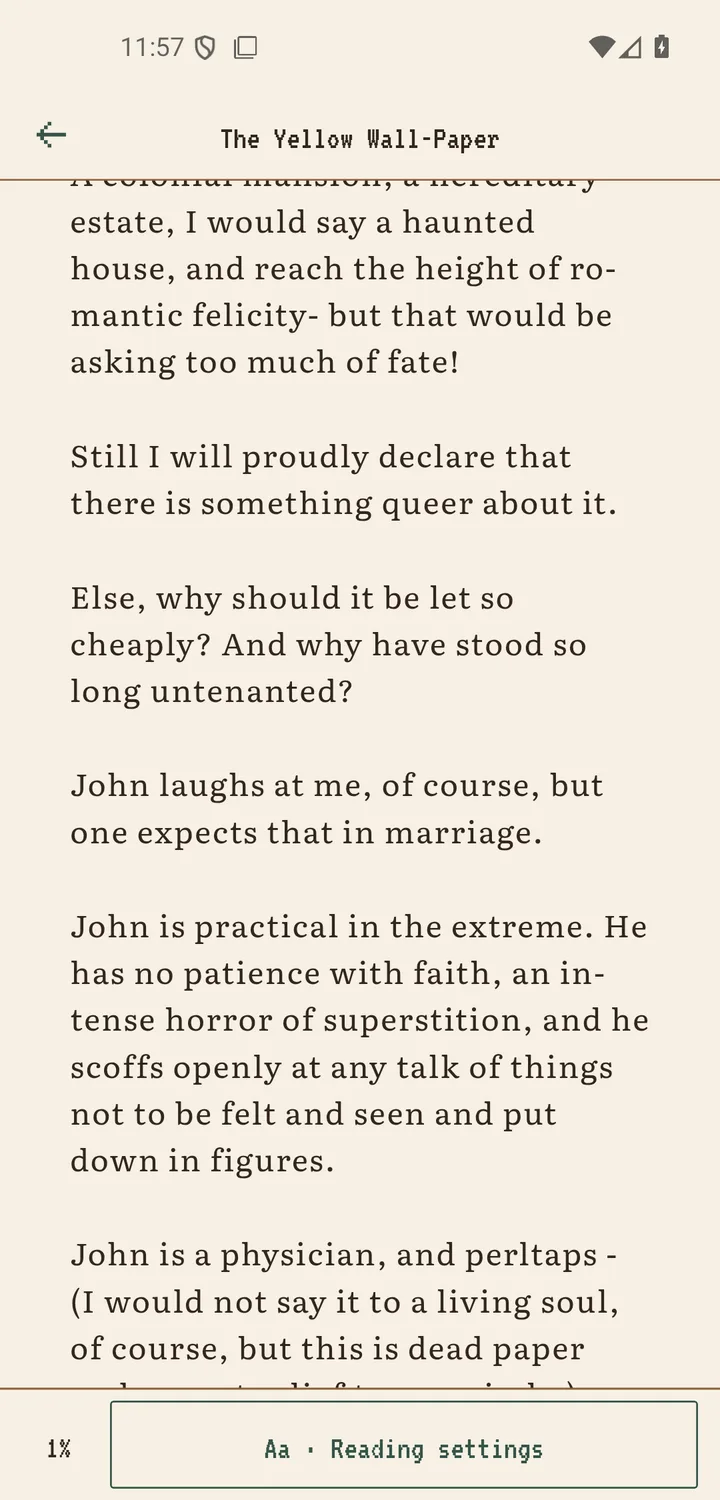
Scroll+ can instead pull the text out of the PDF and let it flow to the width of your phone, so you can change font size, spacing and colors. Pictures are stored separately from that text inside the file. If only the text is prepared, the captions come along and the pictures stay behind. That is what "Image 1" means: the caption survived, the photo was not included. Read PDF reflow versus the original page view for the longer version of this trade-off.
2. The four ways Scroll+ can open a PDF
Text and images prepares resizable text on your phone and keeps the pictures in the reading view. It suits novels and illustrated books, and it uses more storage. Text only leaves pictures out, opens faster and uses less storage, which is right for text-heavy books. Original PDF shows the real pages with their images and tables, and you pinch to zoom instead of resizing text.
The fourth option, Advanced text extraction, is part of the monthly or yearly membership. The PDF is uploaded to our server for processing, the source file is deleted after processing, and the prepared book stays available offline on your phone. It rebuilds complex PDFs with headings, paragraphs and footnotes. The first three modes run on your device and the file is not uploaded.
3. Which mode for which book
For a novel with a few illustrations, a travel guide or a children's book, choose Text and images. For a long text-only book, choose Text only and save space. For art books, comics, maps, sheet music, textbooks with diagrams, or anything where the position of a picture on the page carries meaning, choose Original PDF.
If you are not sure whether a file has a real text layer at all, run the quick test in scanned PDF vs text PDF first. A scanned book is made of page photos, so there is no separate text to reflow, and Scroll+ opens such files in the original page view.
4. When a picture still does not show
Some figures are not stored as pictures at all. Charts and diagrams are often drawn from lines and shapes directly on the page, and those do not come out as a separate image. When some pictures cannot be included, Scroll+ tells you so on the page.
In the reading view you can tap a picture to enlarge it, and Open original PDF takes you to the real page when a figure matters. That way you can read the text in a comfortable size and still check the one diagram you need.
5. Changing the mode of a book you already imported
Scroll+ does not re-process a book behind your back. A PDF prepared before this option existed, or prepared as Text only, stays as it is, so your notes and highlights stay on that copy.
To get the pictures, import the same file again and choose Text and images this time. The steps are in how to import PDF and EPUB files on Android. When you import several PDFs at once, the mode you pick applies to all of them, so group picture books and text books into separate batches.
Mode Comparison
| Mode | Pictures | Text size | Best for |
|---|---|---|---|
| Text and images | Kept in the reading view | Adjustable | Novels, illustrated books |
| Text only | Left out | Adjustable | Text-heavy books, saving space |
| Original PDF | Exactly as on the page | Pinch to zoom | Art books, diagrams, scans |
| Advanced text extraction (membership) | Depends on the file | Adjustable | Complex layouts with headings and footnotes |
Match the mode to what the pictures are for
If the pictures decorate the story, Text and images gives you both comfortable text and the illustrations. If the pictures are the content, Original PDF shows them exactly as printed. If you never look at them, Text only keeps the library light. For more ways to make a phone comfortable to read on, see the best reading settings on an Android phone.