PDF Reflow vs Original Page View: Which Is Better on a Phone?
There is no single best way to display every PDF on a phone. Reflow makes extracted text fit a narrow screen. Original page view preserves the document exactly as laid out. One reduces zooming; the other protects context. The useful question is not which mode is universally better, but which information your document cannot afford to lose.
1. What PDF reflow changes
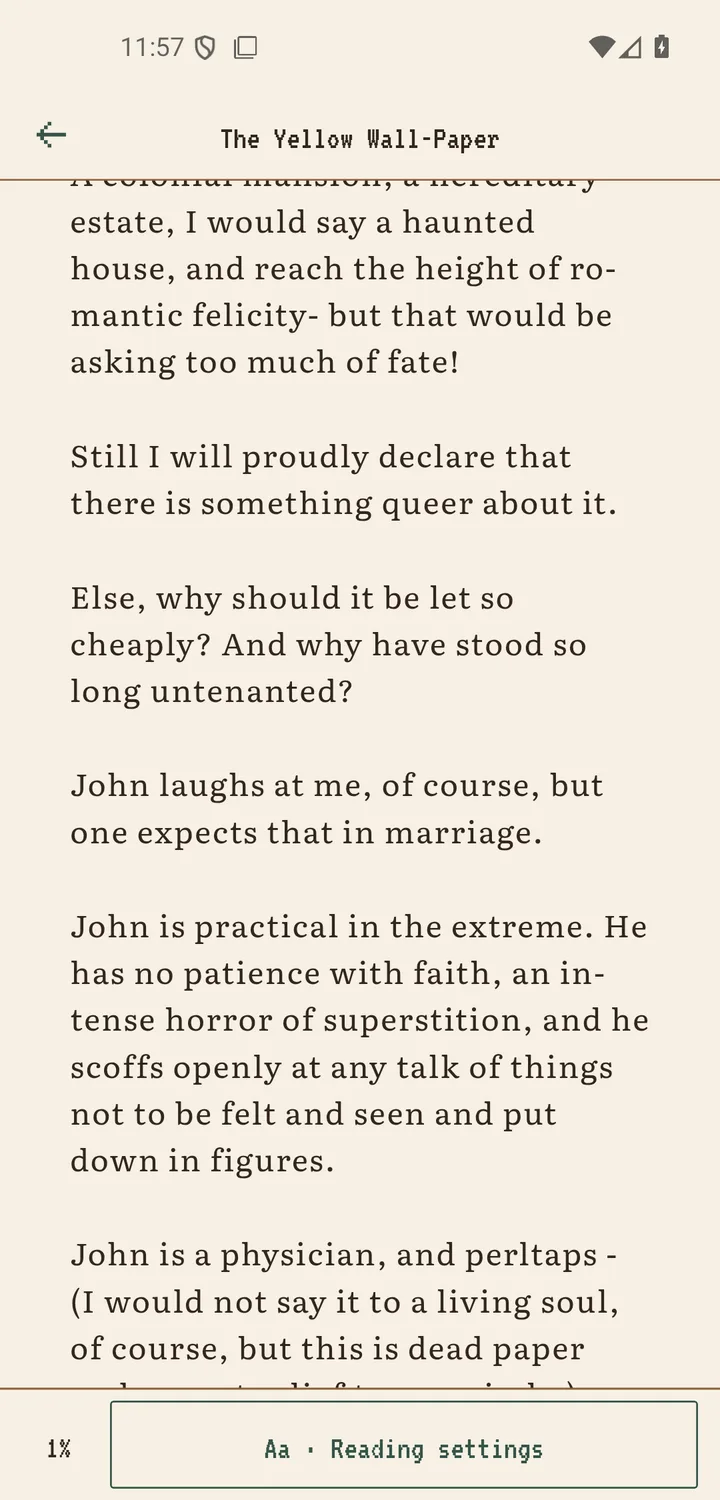
A fixed PDF page has a set width and height. Reflow takes usable text from that page and lets lines wrap to the width of your phone. In Scroll+, the text modes prepare the text locally so you can read it more like an EPUB: the reading layout can respond to font size and other display choices instead of shrinking an entire paper page.
The trade-off is fidelity. Extraction may simplify headings and paragraphs, while columns, footnotes, page headers, tables, figures, and unusual character encodings can appear out of order or disappear from the text view. If you are not sure whether the file contains usable text, start with the scanned-PDF versus text-PDF test.
2. What original page view preserves
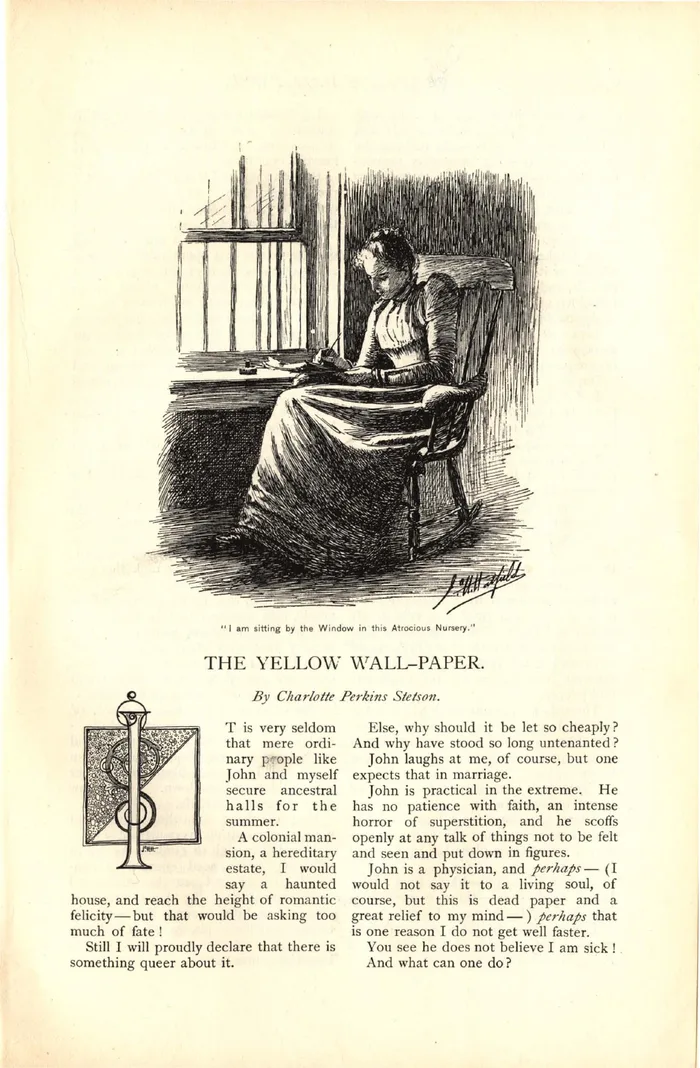
The Original PDF view renders the PDF pages without rebuilding their text flow. That keeps diagrams beside their captions, preserves tables and page numbers, and shows a scanned page as it was captured. It is the safer option when you need to cite a page or understand a visual relationship.
On a small phone, the cost is navigation. A full page may require zooming and horizontal movement. Display controls that depend on extracted text cannot reshape the page. This mode is accurate to the file's layout, not automatically comfortable for long, uninterrupted reading.
3. Match the mode to the document
For a novel exported as a clean PDF, begin with Text and images. For a research paper with two columns, test extraction but verify equations, references, and reading order against the original. For a workbook, form, comic, magazine, illustrated manual, or scanned book, begin with Original PDF. For a mixed file, use the mode that protects the pages you rely on most.
If the same title is available as an EPUB, that format may remove the compromise for text-heavy reading. The EPUB versus PDF guide for phones explains when choosing a different source format is better than trying to repair a fixed page. If you only need to read a two-column article once, you can also turn a two-column PDF into one column in your browser and save it as an EPUB.
4. Processing time and device limits
The text modes do real work on the Android device. A short, simple PDF may finish quickly; a long, dense, rotated, or unusually encoded file may take longer. Device speed and available memory matter because the standard modes prepare the text on your phone; only the optional server processing, part of the membership, sends a PDF to our server. You can see preparation progress in the library while files are handled sequentially.
Original page view avoids the extraction step, but rendering large or image-heavy pages can still use memory. If either mode struggles, close other demanding apps, try the original view, and confirm that the source file itself opens correctly elsewhere. No reader can repair every damaged or encrypted PDF.
5. A reliable two-mode workflow
Keep the source PDF. Import it, choose Text only or Text and images when body text is the priority, and scan several representative pages after preparation. Check a heading, a paragraph, a table, and a page with special characters. If meaning was lost, return to the original-page path for that document.
Scroll+ 0.9.0 improved dense-page handling and the fallback for image-only files. See the release notes for what changed. These improvements reduce failed reading paths; they do not make reflow identical to the source layout.
Use comfort where you can, fidelity where you must
Reflow is best when the words are the document. Original page view is best when the page is part of the meaning. Switching modes based on the material is not a compromise; it is the practical way to read a varied PDF library on a phone.