Scanned PDF vs Text PDF on Android: A Quick, Practical Test
Two files can both end in .pdf and behave completely differently on a phone. In one, every word is stored as text. In the other, each page may be only a photograph. That difference decides whether text can resize to fit your screen or whether you need to view the original page. This guide shows you how to identify each type before you spend time troubleshooting.
1. What is a text-based PDF?
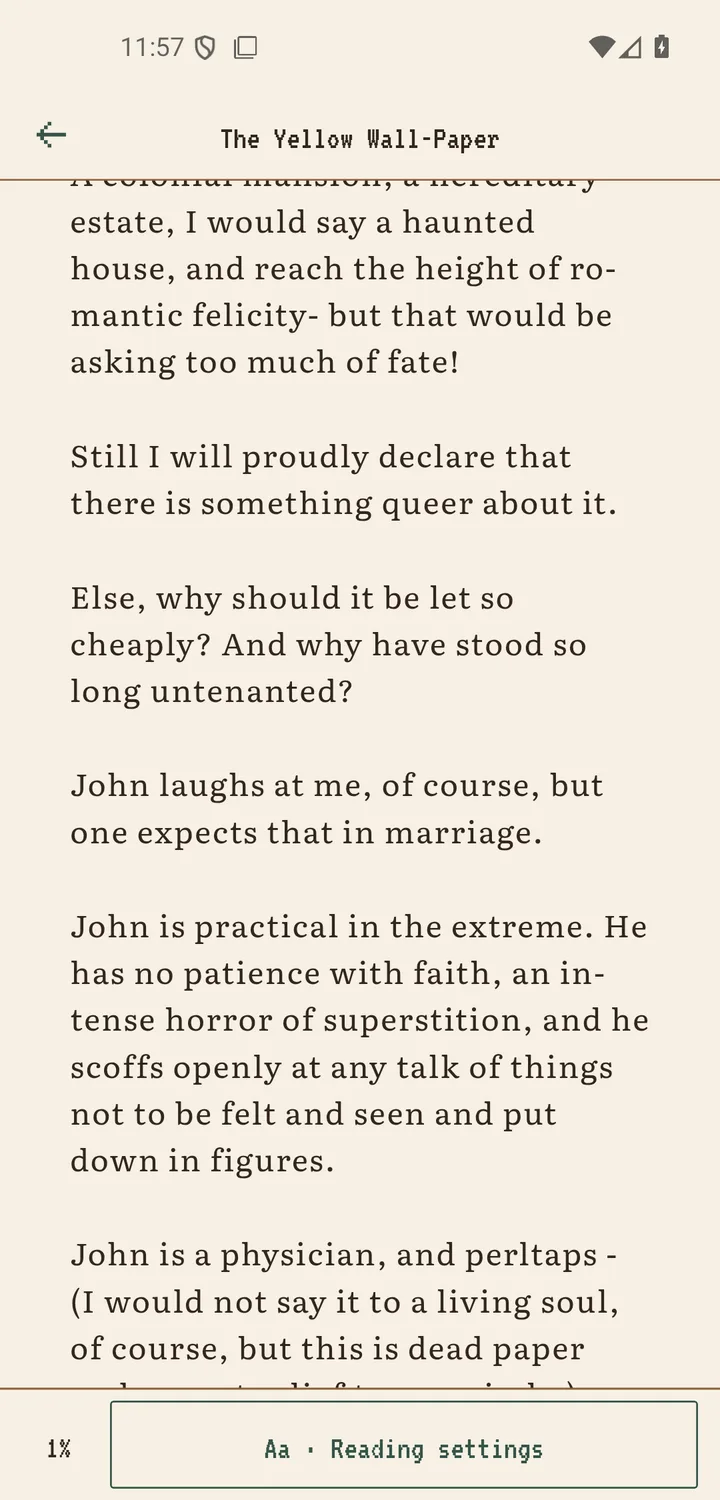
A text-based PDF stores letters and words as selectable content. It may have been exported from a word processor, publishing tool, or digital document system. On Android, you can often press and drag across a sentence, copy it, or find it with search. These are useful clues, not perfect proof: permissions, unusual fonts, or a damaged file can still block selection.
When the text layer is usable, Scroll+ can prepare that text on your device and wrap it to the width of your phone. This is the better starting point for novels, reports, and other mostly linear documents. Read PDF reflow versus original page view before choosing a mode for a document with complex formatting.
2. What is a scanned or image-only PDF?
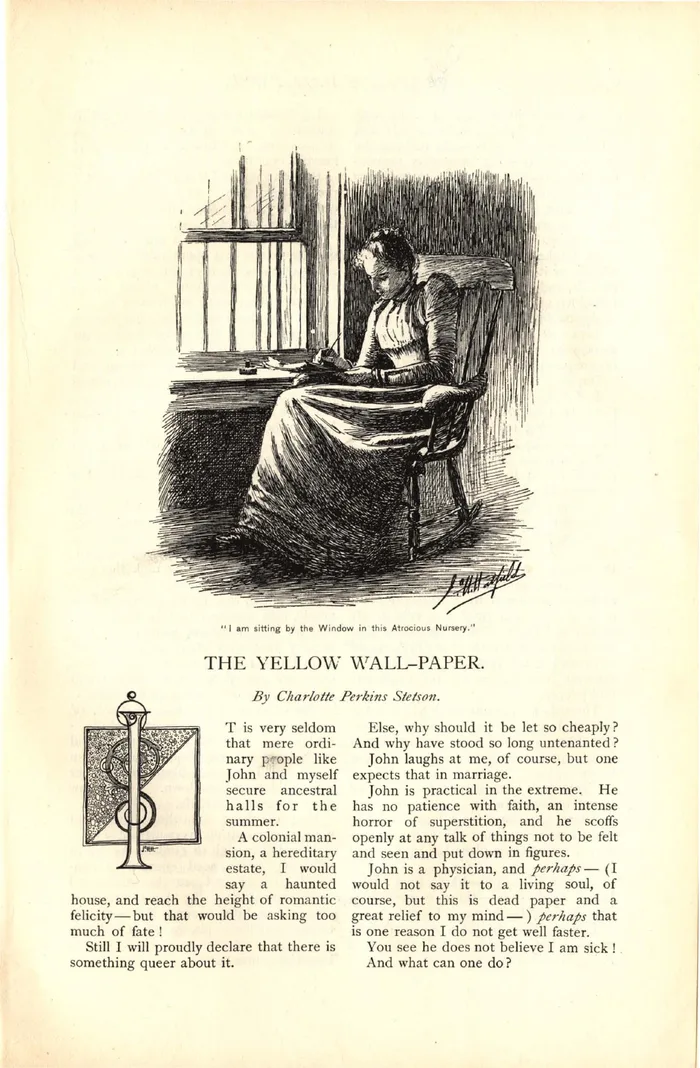
A scanned PDF contains pictures of pages. You can see the printed words, but the file may not contain those words as machine-readable text. A photocopied book, photographed receipt, or old archive scan often works this way. Making the image sharper does not create a text layer, and ordinary text extraction cannot reliably turn that image into paragraphs.
Scroll+ does not promise to convert image-only pages into text. If extraction produces almost no words, the app can identify the low text yield and open the book in the Original PDF view instead of leaving an empty reading view. The original pages remain visible, but you may need to zoom and pan on a small screen.
3. Run these three checks on Android
First, long-press a clear sentence and see whether individual words can be selected. Second, search for a distinctive word printed on the page. Third, zoom in closely: image-only text often becomes visibly pixelated, while digitally rendered text usually stays crisp. Use more than one test because a mixed PDF can contain both real text and scanned pages.
You can also import the file and let Scroll+ test the practical result. Follow the Android PDF and EPUB import guide. Processing happens on your phone, so a long or dense document can take more time on an older or lower-memory device.
4. Why some PDFs sit in the middle
Not every document fits a clean label. A PDF may have a digital table of contents followed by scanned chapters, or selectable body text with charts embedded as images. Multi-column papers, footnotes, mathematical notation, unusual encodings, and rotated pages can also produce text in the wrong order. A successful selection test therefore does not guarantee a perfect reflow.
Choose the mode based on what you must preserve. If uninterrupted body text matters most, try Text only or Text and images. If page numbers, figures, equations, or spatial relationships carry meaning, choose Original PDF. You can keep the source PDF and change your approach rather than forcing every document into the same reading style.
5. What Scroll+ does with each type
Scroll+ stores the PDF and can process it on your device. Text-based files can be prepared as reflowable reading content. Scanned or low-text files can fall back to the original page view. Local processing does not upload book files; members can also send a PDF to optional server processing. The app needs a one-time Google sign-in, after which reading works offline.
The scanned-file fallback was improved in Scroll+ 0.9.0; the 0.9.0 release notes explain the detection and background queue. This fallback protects readability, but it is not a guarantee that every malformed, encrypted, or unusually large PDF will open successfully.
Choose the mode that matches the document
A text PDF is usually the better candidate for a phone-friendly reading layout. A scanned PDF is usually safer in its original page view. Test selection and search first, then consider whether layout or adjustable text matters more. That simple decision prevents most of the frustration people blame on the PDF reader itself.