How to Draw on EPUB and PDF Books on Android, with a Finger or S Pen
Highlighting a sentence is one thing; circling a name, drawing an arrow to the line it explains or underlining a phrase twice is how many of us read a paper book. On a phone that usually breaks the moment you make the text bigger, because the drawing stays where it was on the screen while the words move. Since version 0.17.18, Scroll+ lets you draw on EPUB books and on PDFs opened as flowing text, and every mark is tied to the words under it. This guide shows how drawing works, what the S Pen does, and where its limits are.
1. Make your first mark
Open a book and tap the small pen tab at the edge of the page. The drawing menu opens with Reading, Pen and Eraser. In Reading, touches scroll and select text as usual; in Pen, a finger draws. Underline a phrase, circle a word or write a quick tick in the margin. Undo removes the last mark, and Clear drawings in this book removes them all after asking first, with undo still able to bring them back.
While you draw with a finger, two fingers still scroll the page, so you do not have to switch back to Reading to move on. Hide takes every mark off the page for a clean reread and Show brings them back.
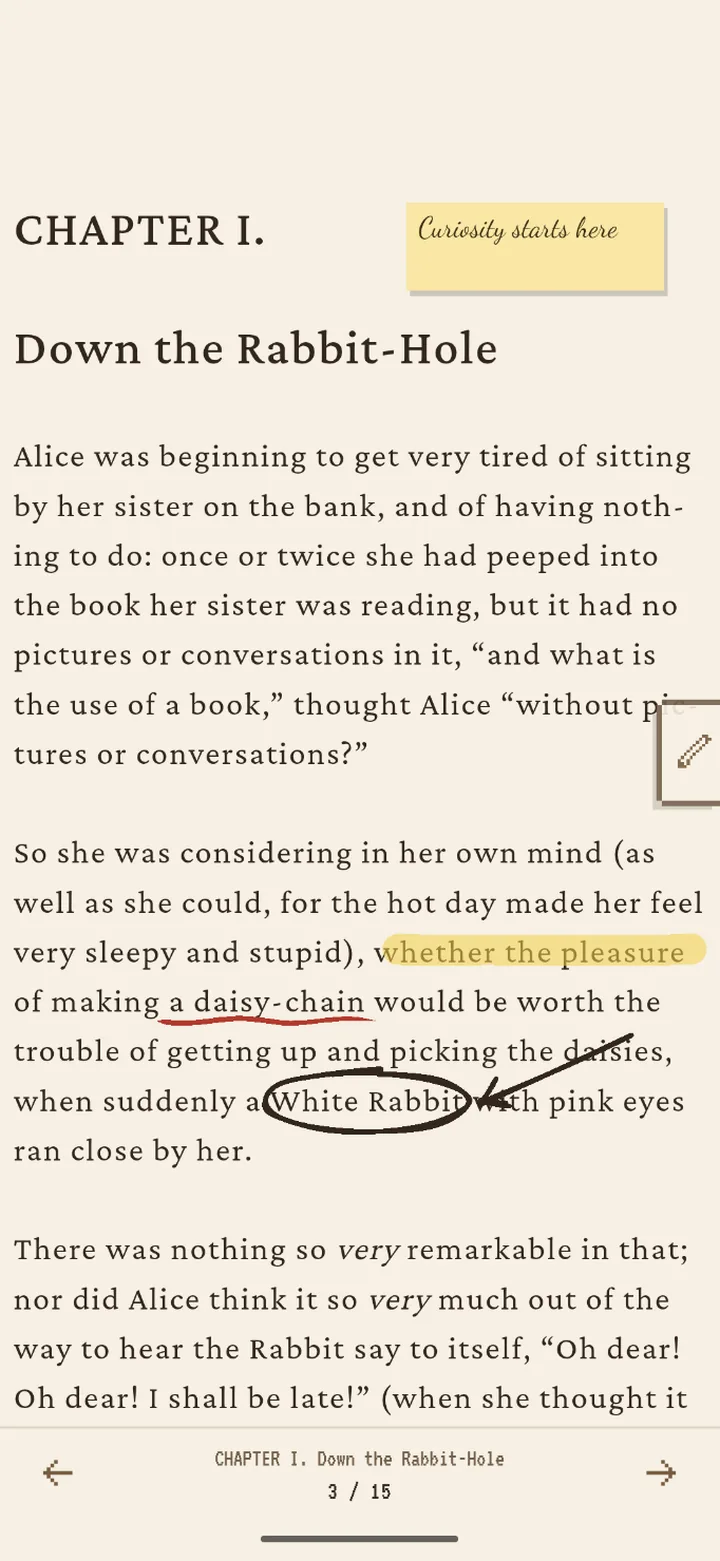
2. Marks follow the words, not the screen
Each mark is saved against the character it starts on, and its shape is measured in the size of the reading font. When you make the text bigger, switch the font or change the line spacing, the circle moves with its word and grows with it instead of floating over the wrong line. This is what makes drawing usable in a book whose layout changes with your settings.
The same idea is behind sticky notes and text boxes for members: they are placed on a spot in the text and stay with it. A note grows as you type into it, and you can drag it to another place. Marks are kept per book, so each book has its own drawings.
3. Drawing with an S Pen
With an S Pen or another active stylus, you do not need to pick the Pen first: the pen always draws, even in Reading. Press the pen's side button while you write and it erases instead. Line width follows how hard you press, which makes handwriting look more like ink.
Once Scroll+ has seen the pen, your fingers and palm stop drawing and only scroll. You can rest your hand on the screen while you write, and flick the page with a finger without leaving a stray line.
4. Keep drawing with the menu closed
The quick bar, added in 0.17.19, keeps your favourite tools and colours on the page while the full menu stays closed. Tap tools in Favorites to add or remove them from the bar. Your favourites appear in every book, and you can drag the bar to another spot and make it more transparent so it does not cover the text.
Members also get more pen types (fountain, pencil and dashed next to the ballpoint), any colour they like, and a way to turn the current page with its drawings into an image to share. The free pen already covers underlining, circling and margin marks.
5. Where drawing does not work
Drawing needs text that Scroll+ lays out itself, so it works in EPUB books and in PDFs opened as Text and images or Text only. The Original PDF view shows the publisher's fixed pages and has no drawing layer. If you want to mark up a PDF, import it in one of the text modes; PDF reflow vs the original page view explains what each mode keeps.
Drawings are saved on this phone with the book. Scroll+ does not sync books or drawings between devices, so a drawing you make here does not appear on another phone, and it is not added to the PDF or EPUB file itself.
Read with a pen in your hand again
Drawing turns a phone back into something you can argue with: a circled name, an arrow to the sentence that answers it, a question mark in the margin. Because the marks travel with the words, you can still make the text as large and comfortable as you need, and on days when your eyes need a break, read aloud works in the same books. For the settings that make long reading sessions easier, see the best reading settings on an Android phone.