How to Have PDFs and EPUB Books Read Aloud on Android
Some chapters are easier to follow with your ears: on a walk, while cooking, or when your eyes are tired after a day at a screen. Scroll+ 0.17.22 added read aloud for the books you already keep in the app. It uses the speech engine that is already on your phone, it keeps going with the screen off, and it marks the sentence it is reading so you can switch back to your eyes at any point. This guide shows how to start it, how to choose a voice, and which files it can and cannot read.
1. Start listening from where you are
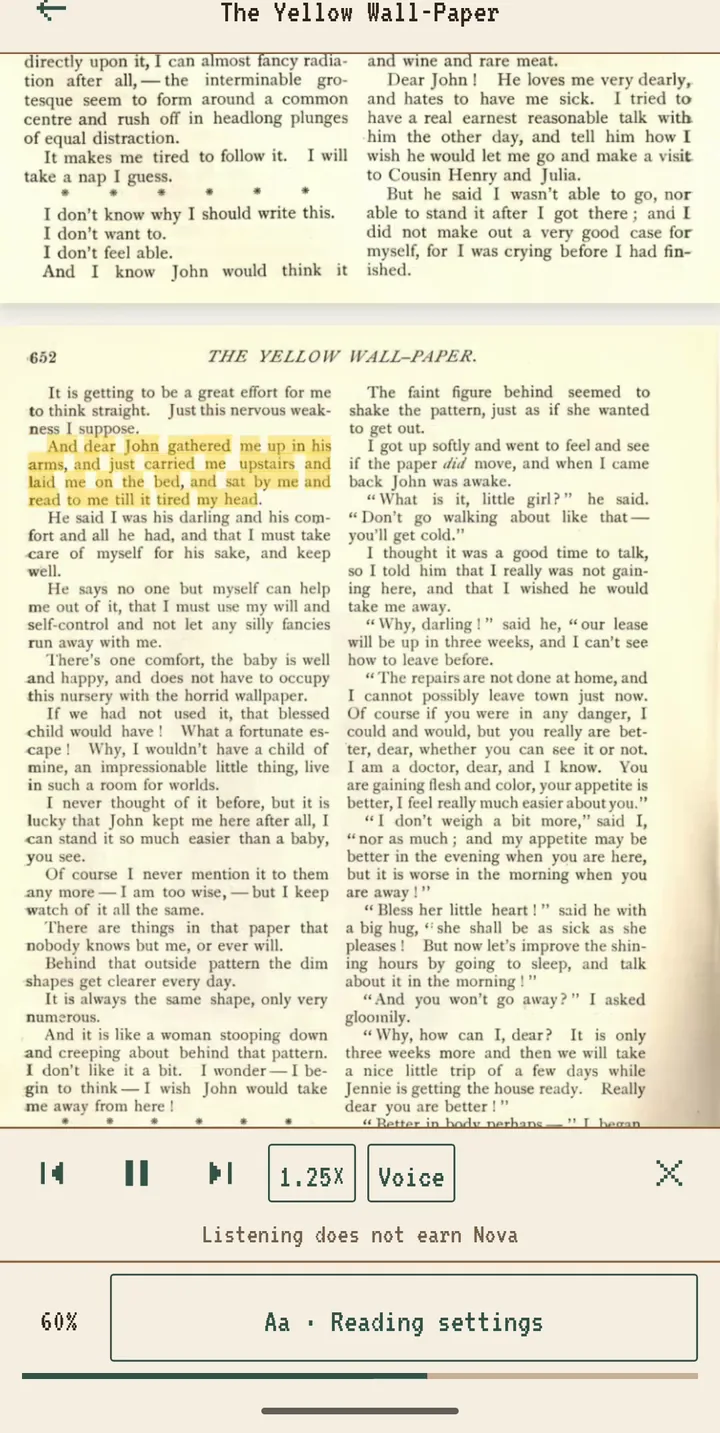
Open any book in your library and tap Listen in the reader. Scroll+ looks at the text that is on your screen and starts from there, so you do not have to find the first sentence of the chapter or scroll back. A small player opens at the bottom with the previous sentence, pause and next sentence buttons, the speed and a Voice button.
While it reads, the sentence being spoken is highlighted on the page and the page follows it, including in the page-turn layout. If you scroll by hand to look at something, the reader leaves you there for a few seconds instead of pulling you back. Close the player with the cross when you want to read silently again. If you like to mark what you hear, drawing while reading works in the same books.
2. The voice comes from your phone
Scroll+ does not ship its own voice. It uses the text-to-speech engine your phone already has, usually Speech Services by Google. That is why the voice can sound different from one phone to another, and why it can work without internet: many voices are stored on the phone. The Voice button lists the voices your phone offers for the book's language and marks each one as offline, needs internet, not downloaded or high quality.
If your phone has no voice for the book's language yet, Scroll+ offers to download it. That download needs internet once; after it, the voice works offline. If the phone's engine cannot read a language at all, you can pick Google's engine under Settings > Text-to-speech output. Turkish and English books read well with Google's engine in our tests; for other languages, the quality depends on the voices your phone provides.
3. Keep listening with the screen off
Read aloud keeps going when you lock the phone or switch to another app. The controls appear on the lock screen and in the notification, and the play and pause buttons on wired or Bluetooth headphones work too. If you unplug your headphones, reading pauses instead of continuing out loud from the speaker.
Speed has five steps: 0.75×, 1×, 1.25×, 1.5× and 2×. Tap the speed button to move to the next step. Slower speeds help with a dense textbook or a language you are learning; faster speeds suit a novel you are re-reading.
4. Which files it can read
Read aloud works with EPUB books and with PDFs you opened as flowing text. It also works in the Original PDF view, page by page, as long as the PDF has a real text layer. A quick way to check is to try selecting a word; the scanned PDF vs text PDF test explains it in more detail.
A scanned PDF is a set of page photos, so there is no text for the voice to read. Scroll+ tells you so instead of reading silence. To listen to such a book, open it with Scroll Lens, which turns scanned pages into text on our server. Readers without a membership get 10 Scroll Lens conversions for free; after that it is part of the monthly or yearly membership.
5. What to expect
Listening does not earn Nova. Nova measures active reading time, and the player says so while it runs. Because the page follows the voice, you can stop listening at any point and carry on from the highlighted sentence with your eyes.
A phone voice reads text, not layout. Tables, formulas, footnote numbers and image captions are read as they appear in the text, which can sound odd in a scientific paper. For novels, essays and most non-fiction it works well. Read aloud is free for every reader at the moment.
Mode Comparison
| Book or view | Read aloud | Note |
|---|---|---|
| EPUB book | Yes | Highlights each sentence as it is read |
| PDF opened as flowing text | Yes | Text and images, or text only |
| Original PDF view | Yes, page by page | Only if the PDF has a text layer |
| Scanned PDF | No | Open it with Scroll Lens first |
Use your ears for the parts that suit them
Read aloud is most useful when you switch between reading and listening in the same book: listen on the way home, then pick up the highlighted sentence with your eyes. If a PDF is hard to read on a small screen to begin with, PDF reflow vs the original page view explains which way of opening it works better, and the same choice decides how smoothly it is read aloud.